These are the main organizational tools we use to communicate as a group. SUPER IMPORTANT 🔎
Use Cases
- Exec uses a main chat to communicate throughout the year
- Subcommittees use spaces to communicate with their exec leaders
- We made spaces for Early Bird, External, etc…the sky is the limit
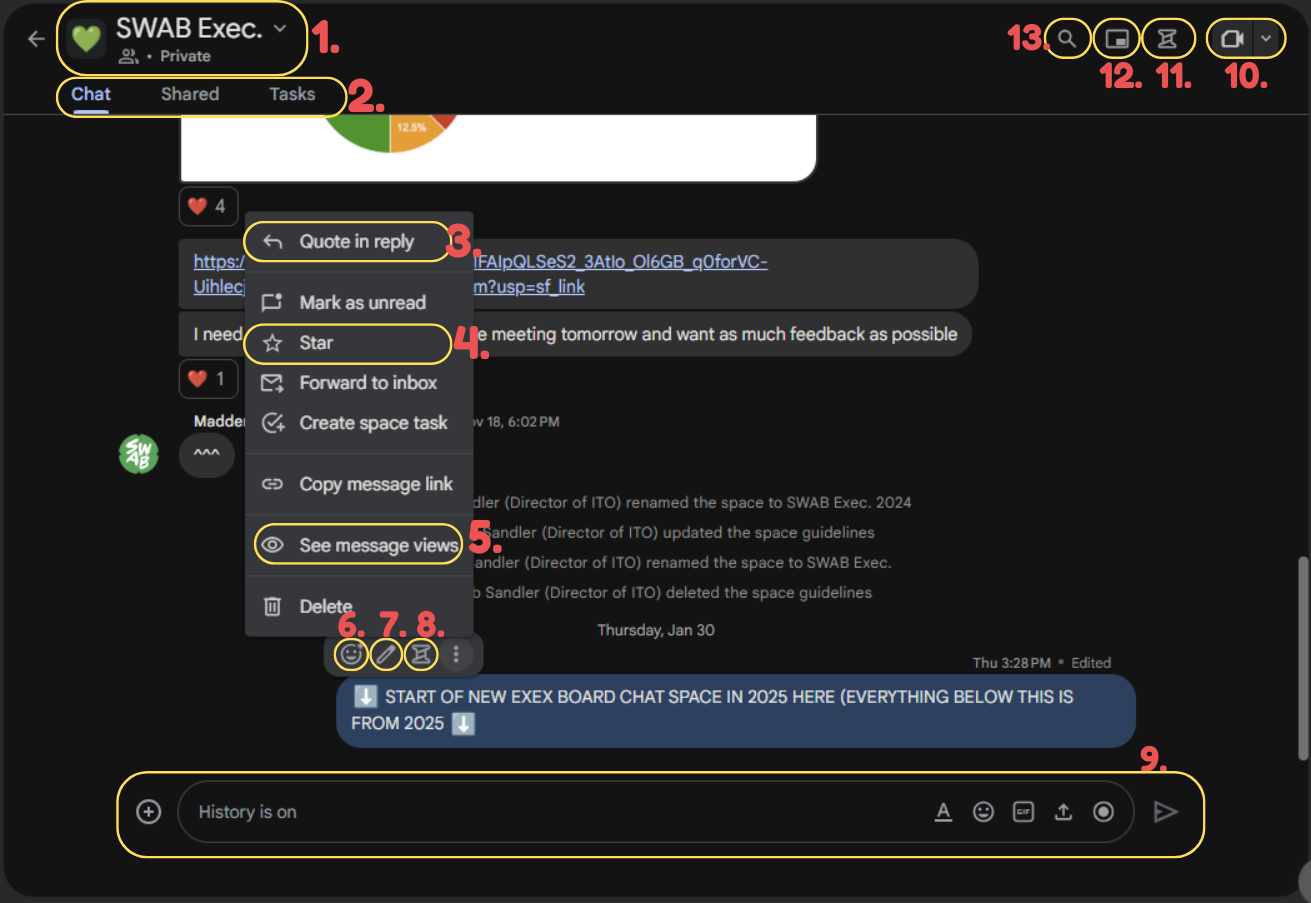 FOLLOW THE NUMBERS FROM ABOVE ⬆️
- Space Settings + Details
- Clicking this gives you access to all of the info about the space. you can change the members or info from here too!
- Chat, Shared, & Tasks : 3 main info panes in Chat
- Chat: where you send and see messages
- Shared : where you see all the files that have been shared in the chat
- Tasks: can be used to assign Tasks to the members of the space
- Potentially useful for sub-committees
- Quote in Reply
- Used to help keep the chat clean by indicating what message you are specifically replying to
- Star
- You can star important or frequently accessed messages and access them in the Shortcuts menu
- See Message Views
- Useful if you’re gaging receival
- Emoji Reaction
- Use this to react to messages
- Edit
- Use this to edit the messages you have already sent (useful for typos!)
- Threads
- Incredibly powerful way to keep the Space clean
- Chat Keyboard
- Main user input
- Google Meet
- Use this to start and send Google Meets to the members of a space
- Useful for collaboration across the exec board with quick meetings
- Use this to start and send Google Meets to the members of a space
- Active Threads
- Use this to see all of the Threads you’re a part of or are following in the space
- Exit Full Screen
- Makes the space appear as a small popup when navigating the rest of the app
- Space Search
- Used to search the space